

At a glance
How it works
1
LiveIntent sends the click
A reader clicks your ad in a newsletter. LiveIntent opens your ClickFlare campaign URL with its macros filled in: the Decision ID, and the campaign, line item, creative, publisher, template and device IDs.
2
ClickFlare stores the Decision ID
ClickFlare saves the Decision ID as the visit’s External ID, stores the other IDs in tracking fields, and redirects the visitor to your lander or offer.
3
The conversion reaches ClickFlare
Your affiliate network or store posts the conversion back to ClickFlare, matched on the ClickFlare click ID.
4
ClickFlare posts it to LiveIntent
ClickFlare calls LiveIntent’s conversion pixel with the Decision ID in
li_did and the payout in li_tp. LiveIntent attributes the conversion to the ad decision that produced the click.The two halves mirror each other. In the campaign URL,
${DECISION_ID} is LiveIntent’s macro and decision_id is the name ClickFlare reads it from. In the postback, ClickFlare’s {external_id} token gives that same value back to LiveIntent as li_did.Before you start
- Set up your own tracking domain. Run the campaign on your own custom domain. Shared domains get flagged by networks and blocked by browsers and mail clients. See Custom Domains.
- Have an offer ready in ClickFlare, and its affiliate network set up to post conversions back to ClickFlare. See Creating an Offer and Adding an Affiliate Network.
- Have a LiveIntent account or a buying route. LiveIntent has no public self-serve sign-up. You work with a LiveIntent account team, log in to an existing platform account, or buy LiveIntent inventory through a DSP such as The Trade Desk or DV360. With a DSP, the click macros may differ: check them with your DSP and LiveIntent contact.
- Get your LiveConnect App ID and conversion names from your account team. The postback needs both:
- The App ID looks like
a-followed by a short code, for examplea-0abc. It is the ID in your LiveConnect tag,b-code.liadm.com/a-0abc.min.js. If you don’t have the tag, your account team gives you the ID. - The conversion names are the events LiveIntent should count, for example
product_purchase. See Conversion names.
- The App ID looks like
Step 1 – Create the campaign and the LiveIntent traffic source
- Go to Campaigns and click New.
- In Traffic Source, open the dropdown and click + New Traffic Source.
- Type
liveintentin the search box and select the LiveIntent template. - Enter a Name, for example
LiveIntent. - Leave Cost currency on USD unless your LiveIntent account is billed in another currency.
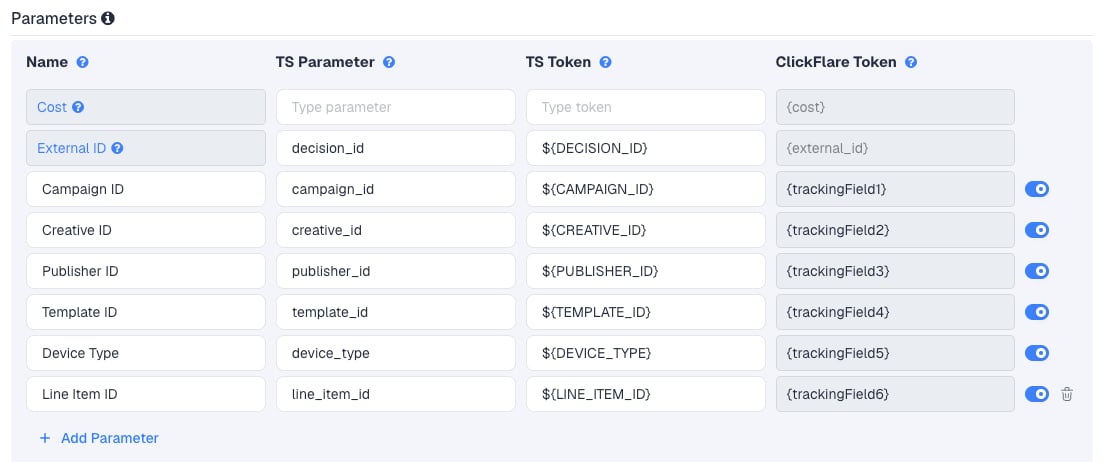
${NAME}, and it won’t let you save a creative whose click URL contains an invalid macro. ${LINE_ITEM_ID} is not in LiveIntent’s public macro list, but the platform accepts it and it passes the line item ID in live accounts. publisher_id is the one you will use most: it tells you which newsletters convert, so you can ask your account team to block or favor them. LiveIntent has no macro for country, OS, newsletter name or cost.
You can rename the TS Parameters to suit your analytics, for example utm_content for the creative and utm_medium for the publisher. Keep each LiveIntent macro unchanged.
LiveIntent may also add the Decision ID to the click on its own, as li_did. That is the same value. The template reads the explicit decision_id parameter, so it doesn’t depend on LiveIntent appending anything. LiveIntent also has ${US_PRIVACY} and ${GDPR} macros, but it says not to use them in email. The template leaves them out.
Step 2 – Set up the postback to LiveIntent
Scroll down in the New Traffic Source form to Passing conversion info to traffic source and turn on Traffic source postback URL. The template fills in LiveIntent’s conversion pixel: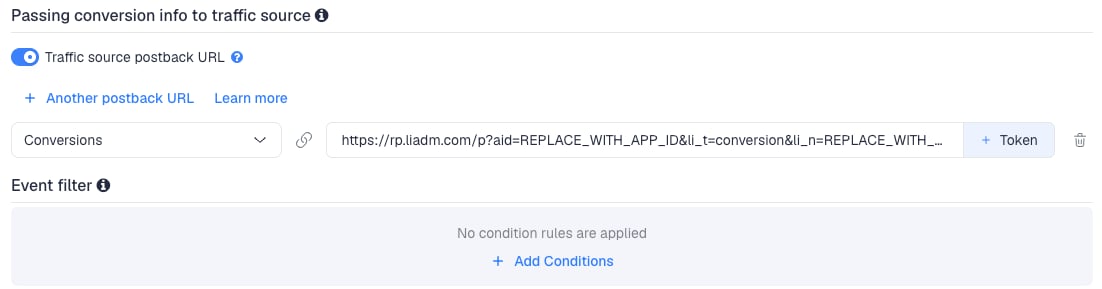
- Replace
REPLACE_WITH_APP_IDwith your LiveConnect App ID, for exampleaid=a-0abc. - Replace
REPLACE_WITH_CONVERSION_NAMEwith the conversion name for this event, for exampleli_n=product_purchase. - In the dropdown on the left, choose which ClickFlare conversions fire this postback: Conversions for all of them, or a custom conversion event such as Purchase.
- Click Save. You are back in the campaign editor with the LiveIntent traffic source selected.
You can add
&li_tid={txid} to pass the conversion’s transaction ID, if your affiliate network sends one. LiveIntent can use it to tell repeat conversions apart. There is no currency parameter: LiveIntent reads the value in your account’s currency.
Conversion names
li_n tells LiveIntent which conversion happened. LiveIntent’s predefined names are:
Custom names work too, for example
click_out for a click from your lander through to a search ad or an offer. A custom name must exist in your LiveIntent account first: your account team sets up the conversion tracker for it. Send only names they confirm, or LiveIntent may not count the conversion.
One postback per event
If you track more than one event, add one postback per event, each with its ownli_n:
- Click + Another postback URL.
- In the new row’s dropdown, choose the ClickFlare conversion event, for example Lead.
- Paste the postback URL with that event’s
li_n, for exampleli_n=form_fill. - Repeat for every event, then click Save.
The events must exist in ClickFlare first. See Custom Conversions. Don’t also keep a postback on Conversions (all events) next to the per-event ones: each conversion would then reach LiveIntent twice.
To send only some conversions, for example only sales above a certain payout, use Event filter under the postback to add conditions.
Step 3 – Finish the campaign and copy its URL
- Name the campaign.
- Set the Cost Model to CPC and enter your expected cost per click. See Cost.
- Choose Redirect or Direct tracking. Both pass the Decision ID to ClickFlare. See Direct Campaign Tracking.
- Click Next and, on Destination, add your lander (optional) and your offer.
- Save, open Tracking, select your own tracking domain and copy the campaign URL.
decision_id=${DECISION_ID}&campaign_id=${CAMPAIGN_ID}. LiveIntent fills them in on every click.
If you use a lander, its call-to-action must link to the ClickFlare click URL, not to the offer directly. Otherwise the visit reaches the offer without a ClickFlare click ID, and the conversion cannot be traced back to the LiveIntent click.
See Creating a Campaign in ClickFlare.
Step 4 – Use the URL as the click URL in LiveIntent
Use the ClickFlare campaign URL as the creative’s click URL:- In the LiveIntent platform, paste it into the creative’s click URL field. LiveIntent checks the macros when you save: if it refuses the creative, a macro is misspelled.
- With a LiveIntent account team, send them the campaign URL and ask them to use it as the click URL for every creative, unchanged.
- Through a DSP, use it as the creative’s landing or click-through URL in the DSP, and check with the DSP which of LiveIntent’s macros it passes on.
$ and the braces. Mail clients and link scanners may open the URL before a reader does, so expect some visits that never reach the offer.
Step 5 – Test the integration
- Click your live ad in a real newsletter, so the visit comes from LiveIntent with a real Decision ID.
- In ClickFlare, open the campaign’s report and check that the visit has an External ID, a UUID such as
16dcf0ad-d401-434c-801c-e84549a6be32. - Check the tracking-field columns. They should show IDs, not
${CAMPAIGN_ID}or other raw macros. - Complete the offer the way a real visitor would and check that the conversion appears in ClickFlare.
- Check the postback ClickFlare sent for that conversion:
li_didshould hold the UUID andli_tpthe payout. - Ask your LiveIntent account team to confirm the conversion arrived in LiveIntent under the right conversion name.
Cost
The template doesn’t pass cost. Its Cost row is empty, LiveIntent has no cost macro, and ClickFlare has no cost integration for LiveIntent. Set the campaign’s Cost Model to CPC and enter your expected cost per click. On CPM or CPA goals you don’t pay per click, so enter your effective CPC instead: the spend divided by the clicks, both from your LiveIntent reports. Don’t enter your CPM divided by 1,000: an impression in a newsletter is not a click, so that would understate your cost many times over.Don’t use Not Tracked with this template. It records cost only when the URL or a cost integration provides it, and neither does here, so your cost would show as zero.
Troubleshooting
The External ID is empty
The External ID is empty
- The click didn’t come from a live LiveIntent ad, for example a direct visit, a preview or a link scanner.
- The click URL in LiveIntent lost
decision_id=${DECISION_ID}, or the macro is misspelled. - The External ID row was removed or renamed.
Columns show raw macros
Columns show raw macros
- A macro is misspelled or lost its
$or braces. LiveIntent only fills macros written exactly as${NAME}. - You buy through a DSP that doesn’t pass LiveIntent’s macros. Ask the DSP which macros it supports.
- See Traffic Source Tokens Arriving Empty.
LiveIntent shows no conversions
LiveIntent shows no conversions
aidstill saysREPLACE_WITH_APP_ID, or holds the wrong App ID.li_nis a name your LiveIntent account doesn’t know. Use a predefined name, or ask your account team to set up the custom one.- The External ID was empty on the click, so
li_didwent out empty. - The postback’s dropdown is set to an event that never fires. Check which ClickFlare event each postback is on.
- See Conversions not showing.
LiveIntent counts conversions twice
LiveIntent counts conversions twice
- A postback on Conversions (all events) sits next to per-event postbacks, so each conversion fires two of them. Keep only the per-event postbacks.
- The LiveConnect tag on your conversion page reports the same conversion. Fire the tag or the postback for each event, not both.
LiveIntent shows fewer conversions than ClickFlare
LiveIntent shows fewer conversions than ClickFlare
LiveIntent applies its own attribution rules, and may drop conversions it can’t match or judges suspicious. Check that every converting visit has an External ID, and optimize on ClickFlare’s numbers.
Many visits but almost no clicks to the offer
Many visits but almost no clicks to the offer
Mail clients and security scanners open links in emails to check them. Those visits never reach your offer. Compare the clicks LiveIntent reports with ClickFlare’s visits, and judge campaigns on conversions, not visit counts.
Cost is zero in ClickFlare
Cost is zero in ClickFlare
The Cost Model is Not Tracked. The template passes no cost, so switch to CPC, or upload costs.
FREQUENTLY ASKED QUESTIONS
Q1: Where do I find my App ID?A1: It is the
a-... ID in your LiveConnect tag, the script that loads from b-code.liadm.com. If you don’t run the tag, ask your LiveIntent account team for it.
Q2: Can I send the conversion value?A2: Yes.
li_tp={payout} sends the payout of each conversion. LiveIntent uses it in its revenue and ROAS reporting.
Q3: Is the Decision ID unique for every click?A3: LiveIntent uses it to attribute each conversion to one ad decision. If a reader clicks the same ad twice, both clicks may carry the same Decision ID. ClickFlare still records each visit.
Q4: Can ClickFlare pull my LiveIntent cost automatically?A4: Not today. LiveIntent has a Reporting API, but it gives daily spend only and signs in with your LiveIntent username and password. Use CPC and correct it with a manual cost upload.
Q5: Can I buy LiveIntent self-serve?A5: LiveIntent has no public sign-up. Existing accounts log in to its platform; new advertisers go through LiveIntent’s sales team or buy LiveIntent inventory through a DSP.
Related
Traffic source postbacks
Every token you can use in a postback.
Custom conversions
Set up the events each LiveIntent postback fires on.
Manual cost upload
Correct your LiveIntent spend in ClickFlare.
Conversions not showing
The general checklist when conversions don’t arrive.