

- The offer URL sends the ClickFlare click ID to FlexOffers in
fobs. - The postback URL sends it back to ClickFlare with every transaction, together with your commission and the order number. FlexOffers calls it a global postback URL: you set it once and it covers all your programs.
#ca# and not #sa#, what to use as the transaction ID, and how to check that it all works.
At a glance
To set up FlexOffers with ClickFlare:- Set the domain and reporting time.
- Create the FlexOffers affiliate network.
- Create the offer.
- Add the global postback.
How the data flows
fobs on the way in and reads it back with #fobs# on the way out. FlexOffers variables are wrapped in #, not braces.What you’ll need
- An active ClickFlare account with your own tracking domain set up. Shared domains get flagged by networks and blocked by browsers. See Tracking domains.
- An approved FlexOffers publisher account, approved in the programs you want to promote.
- Access to Flex Apps → Postback URLs in your FlexOffers account.
What the FlexOffers template contains
ClickFlare has a FlexOffers affiliate network template. It fills in the FlexOffers variables ClickFlare needs.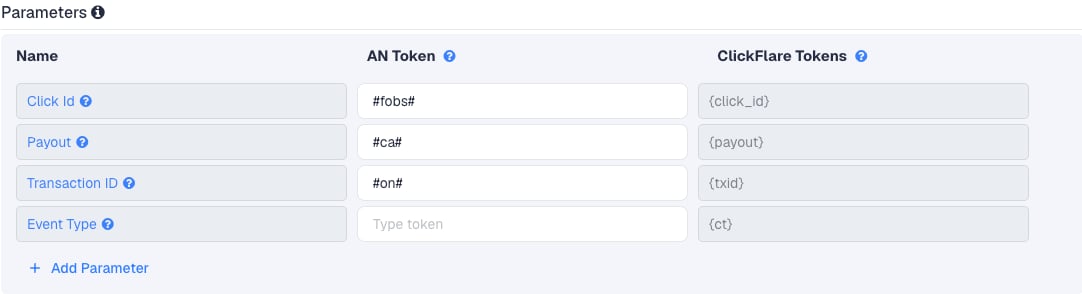
Setup
Everything in ClickFlare is done from inside the campaign editor. Create the offer and the affiliate network inline as you go.Set up your own tracking domain
trk.yourdomain.com. The postback URL is built on this domain, so changing it later means updating the postback in FlexOffers too. See Tracking domains.Report conversions by postback time
Create the campaign
Create the FlexOffers affiliate network
- Search for FlexOffers and pick the FlexOffers template.
- Name it, for example “FlexOffers”. The global postback covers every program, so one affiliate network is enough.
- Check that Click Id is
#fobs#, Payout is#ca#and Transaction ID is#on#. - Leave Event Type empty.
- Under Conversion tracking, select your own Tracking Domain and keep S2S Postback URL as the tracking method.
- Set Payout currency to the currency FlexOffers pays you in.

Get the tracking link from FlexOffers
Create the offer in ClickFlare
- Name the offer, for example after the advertiser.
- Select the FlexOffers affiliate network you just created.
-
Paste the FlexOffers link into Offer URL and turn on Append Click ID to Offer Url. ClickFlare adds
fobs={cf_click_id}from the template. You can also add&fobs={cf_click_id}yourself. Use one or the other, not both.
payout value from the postback.Add the global postback in FlexOffers
- Click the Flex Apps menu, then Postback URLs.
- Click Create Postback.
- Select the traffic source or sources the postback is for. Pick every source whose links you’ll run through ClickFlare.
- Paste the ClickFlare postback URL into Postback URL. Keep the variables exactly as written:
#fobs#,#ca#,#on#. - Select the Request Method. Choose GET, so FlexOffers fills the variables into the URL that ClickFlare reads.
- Click Save.
fobs. FlexOffers can’t send back a click ID it never received.Add a lander (optional)
Save the campaign and launch
The transaction ID
By default ClickFlare keeps one conversion per click ID. If several postbacks arrive with the same click ID and no transaction ID, ClickFlare treats them as the same conversion and keeps only the last one received. Thetxid parameter tells ClickFlare that each postback is a separate conversion, so its value has to be different on every transaction.
txid, or two sales on one click collapse into one, ask FlexOffers support whether #flx_salesid# is unique per sale. If it is, switch Transaction ID to #flx_salesid# in the affiliate network and in the FlexOffers postback.
More FlexOffers variables
Turn on Include additional parameters in the postback URL to send more values with each conversion. ClickFlare acceptsparam1 to param20. Useful ones:
fobs2 to fobs5 work like fobs. Keep the click ID in fobs and use the others for your own labels, for example &fobs2=native on the offer URL. They show up in FlexOffers’ reports too.
Verify the setup
Click through the campaign
fobs= followed by a real ClickFlare click ID, not the literal text {cf_click_id}.Test the postback by hand
https://trk.yourdomain.com/cf/cv?click_id=REAL_CLICK_ID&payout=1&txid=test1. The conversion should show on the campaign. This tests ClickFlare’s side only.Check the first real transaction
txid. Compare it with the Transaction Details page in FlexOffers.Troubleshooting
Transactions show in FlexOffers but not in ClickFlare
Transactions show in FlexOffers but not in ClickFlare
- The postback isn’t attached to the right traffic source. Open Flex Apps → Postback URLs and check the postback covers the traffic source your links belong to.
- The click ID isn’t in the link. The offer URL is missing
fobs={cf_click_id}, or the lander CTA links straight to FlexOffers instead of using the ClickFlare click URL. - The click ID went into another sub ID. If the link uses
fobs2but the postback reads#fobs#, ClickFlare gets an empty value. Both sides must use the same one. - The program doesn’t support postbacks. Not every advertiser on FlexOffers may fire them. Ask FlexOffers support if one program never posts back while others do.
Revenue in ClickFlare is far too high
Revenue in ClickFlare is far too high
#sa# (sale amount) as the payout. Change Payout to #ca# in the affiliate network, then update the postback in FlexOffers.ClickFlare receives a literal #fobs# or cf_click_id
ClickFlare receives a literal #fobs# or cf_click_id
- A literal
#fobs#means FlexOffers didn’t replace the variable. Check the spelling against the list in Create Postback. - A literal
cf_click_idmeans the offer URL in ClickFlare has the token without braces. It must be{cf_click_id}.
Only one of several sales shows in ClickFlare
Only one of several sales shows in ClickFlare
txid is empty or repeats. Consider #flx_salesid# instead, as described in the transaction ID.FAQ
Does ClickFlare integrate with FlexOffers?
Does ClickFlare integrate with FlexOffers?
Do I need a postback per program?
Do I need a postback per program?
How fast do FlexOffers conversions arrive?
How fast do FlexOffers conversions arrive?
Does FlexOffers send a postback when a sale is reversed?
Does FlexOffers send a postback when a sale is reversed?
Can I send the conversion back to my traffic source?
Can I send the conversion back to my traffic source?